Hear the difference before you label the tempo
Half-time places one click across two of your tapped gaps. Double-time places two clicks inside each gap. Switch between the three playback buttons while the same passage is playing; the click that matches the level you need for your grid is your working choice. Stop playback before leaving the page.
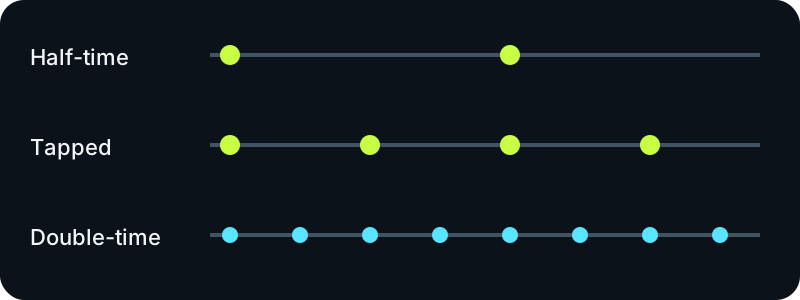
Keep the count tied to your task
A DJ can choose the level that makes beatmatching cues easiest to place. A drummer might count a slower backbeat while a programmer needs a faster grid for edits. The numeric relationship alone cannot settle that choice, because accents and subdivisions can support more than one count.
Compare without losing your original taps
- Tap one repeating layer until the displayed rate settles.
- Play the tapped click, then compare the slower and faster clicks against the same musical passage.
- Keep the rate that matches the beat level required by your session, and record that choice in your project notes.
If the tap spacing itself wandered or a hit was missed, inspect the individual gaps in the tap consistency test before comparing pulse levels.
Questions about related tempos
Does double-time mean the song became faster?
No. Only the counting level changes here. Doubling the displayed BPM places twice as many clicks into the same clock time; it does not alter the audio you are listening to.
Can the slower and faster values both be useful?
Yes. They can describe the same passage at different levels of its rhythmic hierarchy. Use the one that makes the beats and bars in your current workflow legible.
Why might none of the clicks fit?
You may have tapped a fill, a syncopated accent, or a passage whose pulse changes. Reset and tap a repeating layer in a steadier section. For a fixed click with selectable meter and subdivision, use the metronome.
Tap times and click sounds are generated in your browser. No audio is uploaded or recorded.